
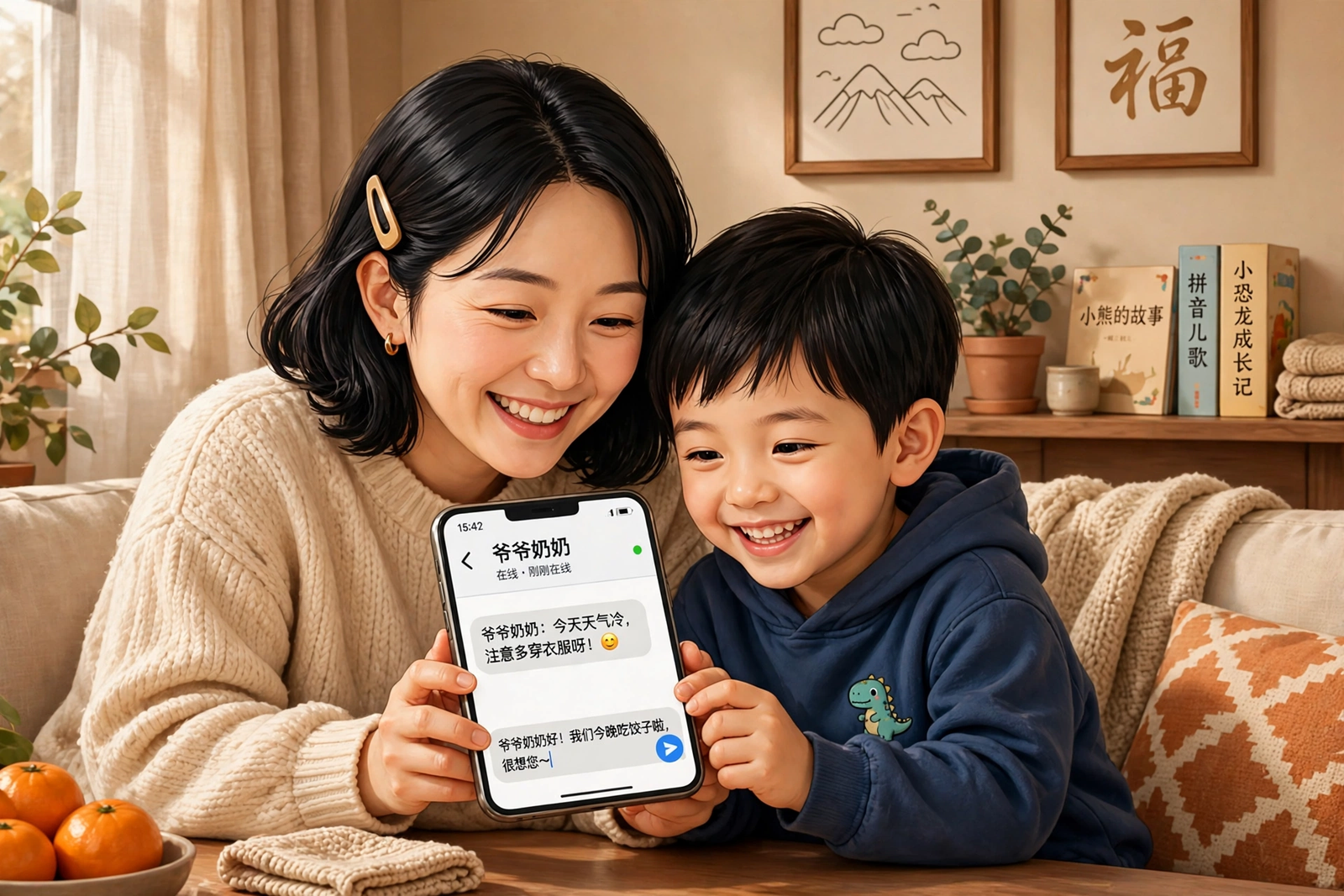
Last month a mum in my class held up her phone and said, “I can say 你好, but I can’t text it.” She is not alone. Most beginners assume typing Chinese means learning a whole new keyboard, when in fact you already know everything you need: the sounds. If you can say a word in pinyin, you can type it. The whole setup takes about five minutes, and once it is done, texting grandma, searching for a song, or messaging a language partner gets dramatically easier.
Here is the deal. Your phone already has a Chinese keyboard built in — it is just switched off. Turn on pinyin input, type the sound of the word with the Latin alphabet, and your phone offers you the characters to choose from. That is the entire trick. Below is how to switch it on, how to pick the right character when several look alike, and the three shortcuts that make typing Chinese feel fast instead of fiddly.
How to type Chinese on phone: switch on pinyin input
On an iPhone, go to Settings, then General, then Keyboard, then Keyboards, then Add New Keyboard, and choose Chinese (Simplified) — Pinyin. On most Android phones, open Settings, then System, then Languages and input, then On-screen keyboard, then Gboard, then Languages, and add Chinese (Simplified) with the Pinyin method. If your Android phone does not offer it, install Gboard free from the Play Store and add it there. One keyboard, added once, and it stays.
To switch keyboards while typing, tap the globe icon (iPhone) or the language key (Android) until the Chinese keyboard appears. You will still see the familiar Latin letters — that is normal. Pinyin input uses the same letters you already type with. Type “nihao” and a row of character suggestions appears above the keyboard: 你好 right at the front, because it is the most common match. Tap it, and the characters land in your message.

Picking the right character when sounds repeat
Here is the part that worries everyone, and it is much easier than it sounds. Mandarin has many words that sound the same. Type “shi” and your phone might offer 是, 事, 市, 十 and more. So how do you choose? Two things save you. First, type whole words, not single syllables. Type “xiexie” instead of “xie xie” and 谢谢 jumps to the front, because the phone knows that pair belongs together. Second, trust the order: your phone learns from you, so the characters you pick most often float to the top within a week.
And do not worry about getting it wrong in front of a native speaker. A mistyped character in a text is like a typo in English — people read the sentence, not the single character, and they will understand you. My students’ favourite early win is texting 我爱你 (wǒ ài nǐ, I love you) to a parent on Mother’s Day. Three syllables typed, one big smile earned.
Do you need to type the tone marks?
No — and this surprises people. When you type pinyin on a phone, you skip the tone marks entirely. Type “zhongguo” and 中国 appears; type “chifan” and 吃饭 appears. The phone works out the tones from the word itself. That is one reason typing is such a good study tool: it rewards knowing the sounds and the word as a unit, not memorising accent marks.
One habit is worth building early, though. When the suggestion row shows you a character you do not recognise, tap it and look before you send. Five seconds of checking turns every text into a tiny reading lesson, and it stops the classic beginner mistake of sending the wrong “ma” — 妈 (mum) when you meant 马 (horse). Your family will notice the difference.
Three shortcuts that make it feel fast
Once the keyboard is on, these three tricks take you from pecking to fluent:
| Shortcut | What it does | Try it with |
|---|---|---|
| Type whole words | Word pairs rank above single characters | “pengyou” gives 朋友, not just 朋 |
| Use predictive text | Your phone suggests the next word in the phrase | After 我想, it offers 吃, 去, 买 |
| Try voice input | Tap the microphone and speak the sentence | Say “wǒ xiǎng hē shuǐ” for 我想喝水 |
Voice input deserves a special mention for learners. Speaking a sentence and watching your phone write the characters is instant pronunciation feedback: if the wrong characters appear, your tones or sounds were off, and you get to try again. It is the closest thing to a patient tutor who never gets tired.
Common problems, fixed in seconds
The keyboard switched back to English
That is just the globe key cycling through your keyboards. Tap it again, or hold it down to pick Chinese from the list. If you only ever use two keyboards, the cycle is short.
I see traditional characters, not simplified
You added the wrong variant. Remove that keyboard and add Chinese (Simplified) — Pinyin instead. Simplified is what mainland textbooks and the HSK use, so it is the right default for most learners.
Handwriting input looks tempting — should I use it?
It is fun, and drawing a character to look it up is a great dictionary trick, but it is slow for everyday typing. Keep pinyin as your daily keyboard and handwriting as your “what is this character?” detective tool.
Quick Quiz
Test yourself on typing Chinese on your phone. Click an answer to see if you are right — your score is at the top.
Score: 0/5
1. How does pinyin input work?
2. What do you do with tone marks when typing pinyin?
3. What is the best trick for picking the right character when sounds repeat?
4. Why does the post praise voice input for learners?
5. Which “ma” mix-up does the post warn about?
Your 5-minute setup checklist
Before you put the phone down, tick these off:
- Add Chinese (Simplified) — Pinyin to your keyboards
- Switch to it and type “nihao” — tap 你好
- Text someone one real sentence, like 我很好 (wǒ hěn hǎo, I’m very well)
- Try voice input with one sentence and check the characters
- Turn on predictive text if your keyboard offers it
That is it. Five minutes, one keyboard, and suddenly the language lives in your pocket instead of only in your textbook. If you want the words to type, our Chinese programme teaches every HSK 1 word with pinyin, audio and characters side by side — and you can try the free HSK 1 trial lessons and start texting in Chinese tonight.